Store Email Functionality for Retail Management Users
This document outlines how retail management users can check their store email inboxes and send emails through it.
Retail management users can see store email inboxes directly within their Outlook app and are able to send emails through that email by following these steps:
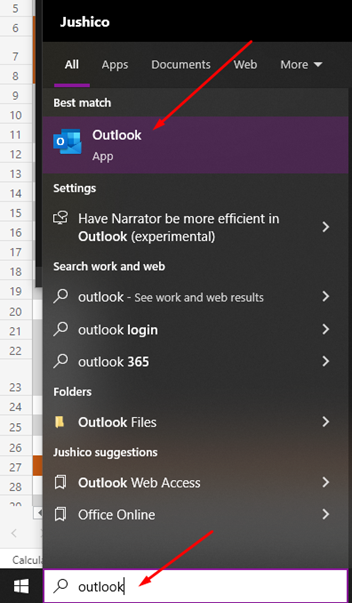
- Open the Outlook app – use the bottom-left Windows search bar and type “Outlook” (without the quotes) and click on the Outlook app.
- If this is the first time you open Outlook, use the following sub-steps to create your profile in it. Otherwise, skip to the next bullet point.
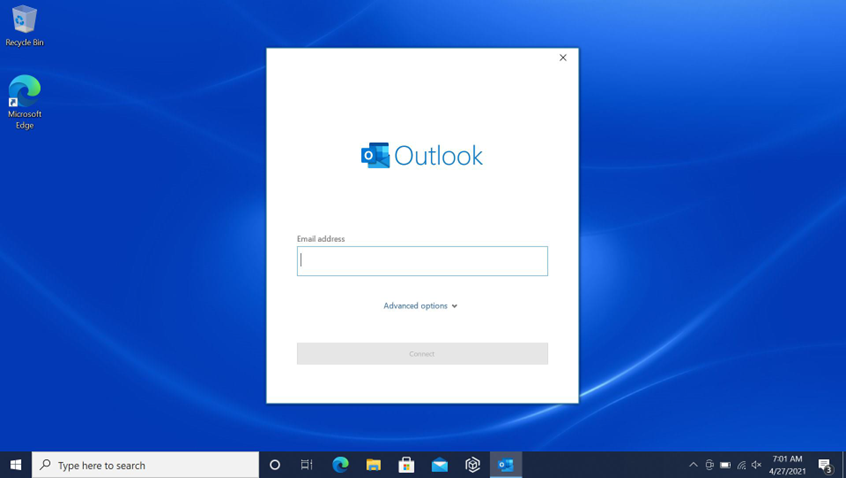
- You will see a screen like the image below. Enter your work email (not the store email) to begin creating your profile.
- If you are prompted to enter credentials, enter your work email’s credentials.
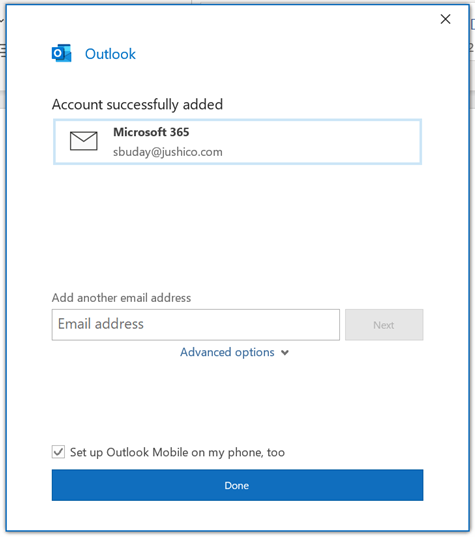
- Outlook will let you know that your account was successfully added with a screen as shown in the image below. Click “Done” for Outlook to open.
- Please wait as Outlook begins to synchronize any and all emails you have.
- You will see a screen like the image below. Enter your work email (not the store email) to begin creating your profile.
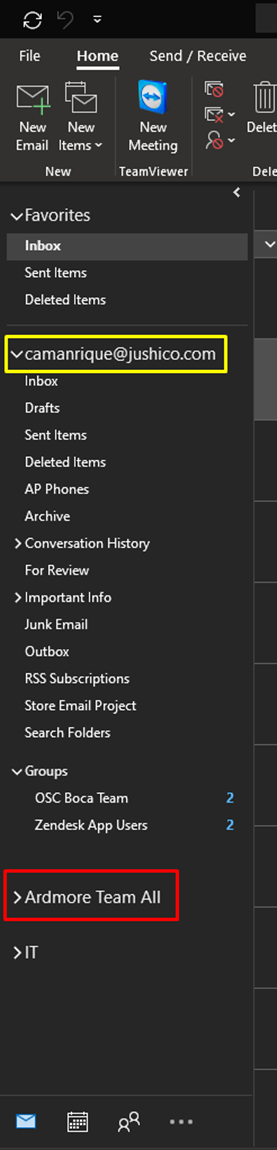
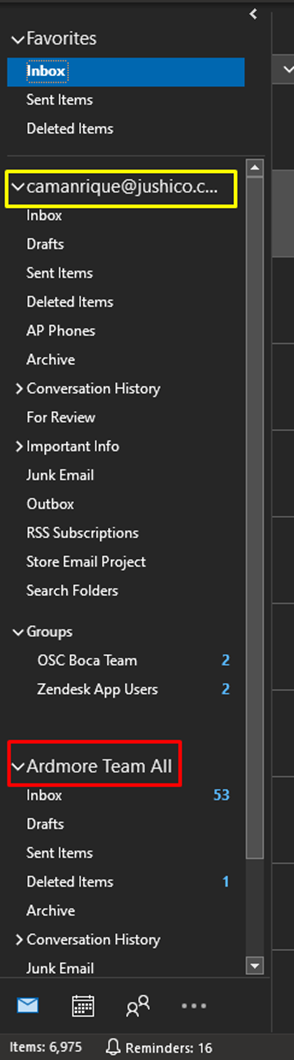
- Along the left-hand side of Outlook, as you scroll up and down, you will see all your email folders. Under your work email folders, you will find the store email inbox and its folders, as shown in the images below. You can expand the arrow next to the display name of the store email to see or hide all its folders. In this example I am using the Ardmore store email to demonstrate – my work email is boxed in yellow, and the store email is boxed in red.
- Store email folders collapsed:
-
- Store email folders expanded:
- Finally, the following steps demonstrate how you can send an email AS the store email, instead of your own work email:
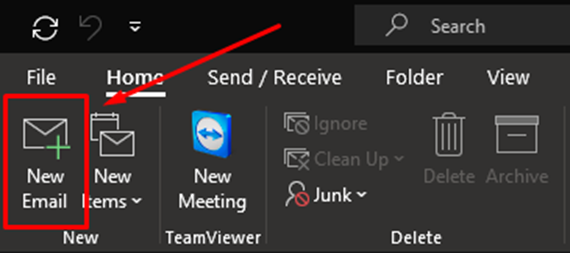
- Click on “New Email” from the upper-left of Outlook to compose a new email.
-
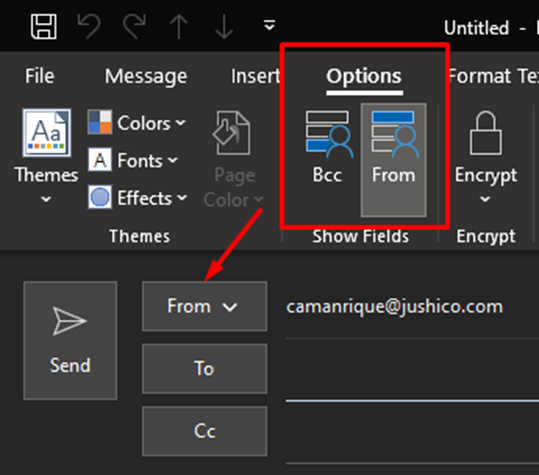
- Go to the Options tab and click on the “From” button to allow the “From” field to show up. You only need to do this once for your profile.
-
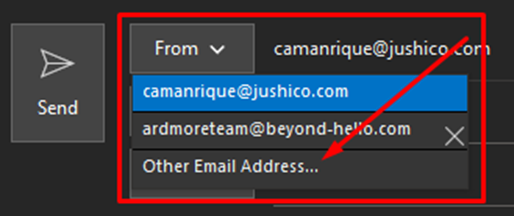
- Click the “From” button that has appeared/is next to the send button.
- And choose “Other email address…”
-
- Type in the store email address (in this demonstration ardmoreteam@beyond-hello.com has been used) and click OK.
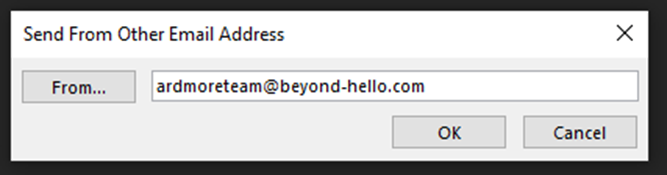
-
- This process will save the email so you can quickly switch the “From” to and from your work email. Both will appear in the drop-down menu when you go to send an email. Please double check each time you send an email to make sure you are sending your email from the correct “From” email address.
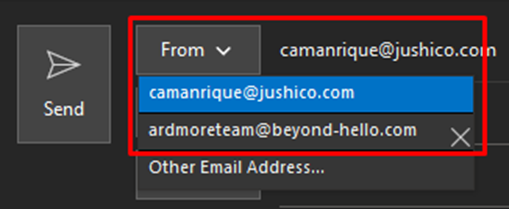
-
- Now you can send your email AS the store email address.