How To Add a Signature in Microsoft Outlook
- Open Microsoft Outlook
- Click on New Email

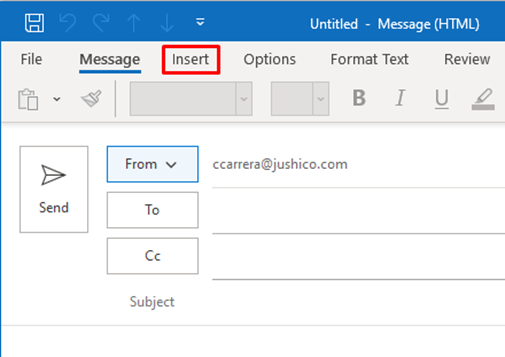
- Click on the Insert Tab.
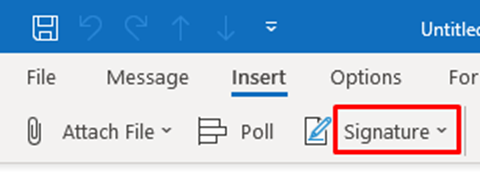
- Now you will see Signature Tab. Click on the Signature tab then from the drop-down menu click on Signatures.
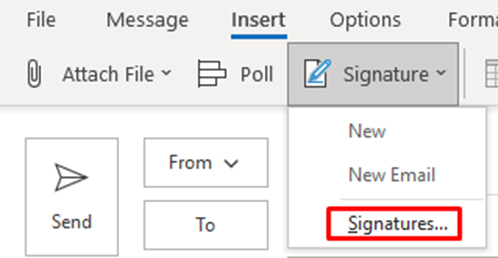
- Click on new to create a Signature. Give your New signature a name. As an example, I named it New.

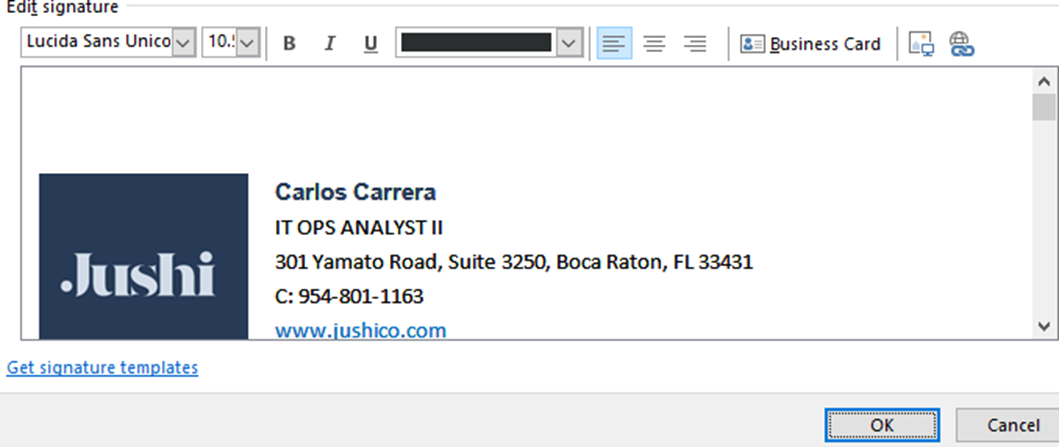
- Add your signature to the Edit Signature box then click on ok once done.
- Select the name of the signature you will be using for New And replies/forwarding.

How to create a signature in Outlook on the Web
-
Sign into Outlook.com and select Settings. You will now view all Outlook settings located at the top of the page.
-
You will now select Mail then Compose and reply.
-
Under Email signature, type your signature and use the available formatting options to change its appearance
-
Once completed click Save.
Note: You can have only one signature per account.