Accessing Adobe Stock
This document outlines steps to be taken by users to access Adobe Stock content after a license has been assigned
You can go directly to https://stock.adobe.com/ to search for assets.
You can also search Adobe Stock content directly from Adobe desktop applications that support Creative Cloud Libraries, such as Photoshop, Illustrator, InDesign, Dreamweaver, Premiere Pro, After Effects, Dimension and Animate. Computer info
- Install the Adobe Creative Cloud app if it hasn’t been installed already from the Adobe website.
- If the Libraries panel isn't already open, choose Window > Libraries or Window > CC Libraries.
More Information Below
- Search for Imagery - In the Libraries panel, make sure you have selected Adobe Stockfrom the menu in the search field. Enter your search term in the field.

- Find the Right Image - Browse the images in the search results until you find the one you want.
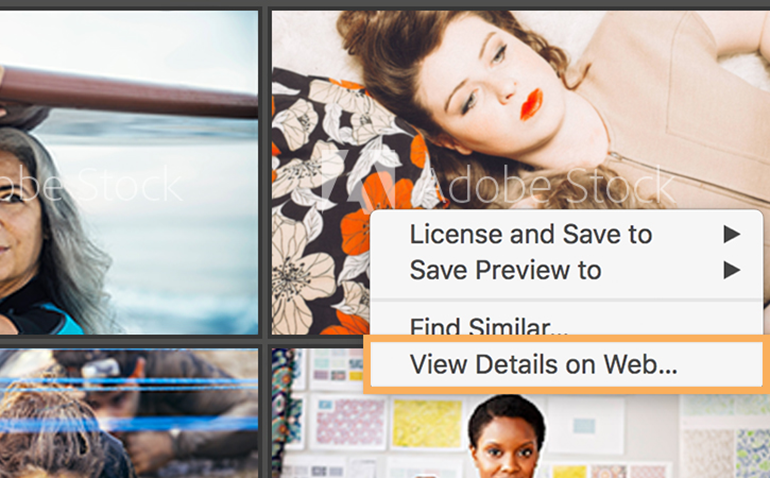
If you want to get more information about the image, right-click it and choose View Details on Web to launch its detail page on the Adobe Stock website.
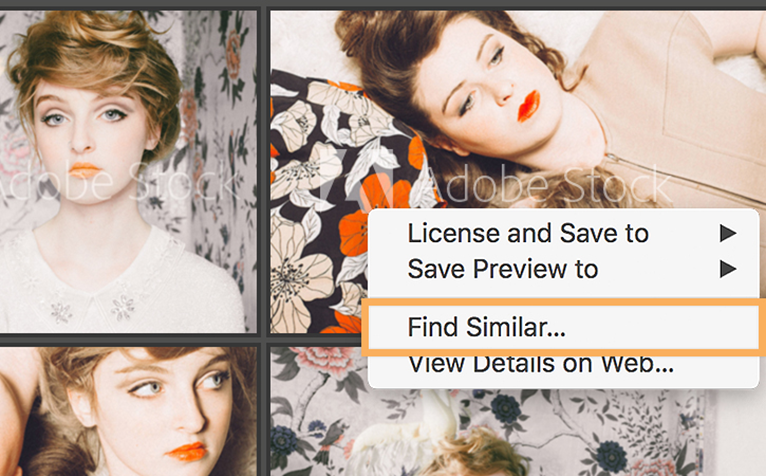
- Find Similar Images - To find images similar to a particular image displayed in the Adobe Stock search results, right-click the image and choose Find Similar.
To find images similar to an image that is already in one of your libraries, right-click it and choose Find Similar.
- In the Libraries panel, select a library you want to save an image to.
Hold your cursor over the image you want. Click the Save Preview to (library name) button to save a watermarked version of the image to the library you just selected.
Once you are ready to use the image, double-click it to open it in a new workspace or drag it onto an existing project.

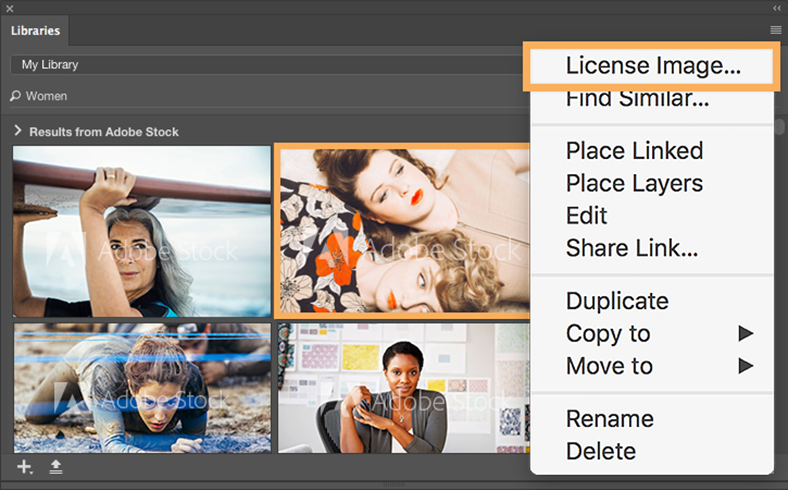
- When you’re ready to use the unwatermarked version, right-click the image in the library. Choose License Image and follow the prompts to complete the purchase. The watermarked image will immediately be replaced with an unwatermarked image.