Enabling the Use of Macros in Documents Downloaded from C15
This document outlines steps to be taken by the users when they have downloaded a document from C15 that has macros and for the first time are seeing an error saying “Microsoft has blocked macros” and now need to re-enable macros.
Have you run into this issue from a document you have downloaded from C15?
This banner shows along the top of the document when you can’t run macros on the file. Since August 2nd, 2022, Microsoft has implemented a policy where macros are blocked by default in Office. However, you can re-enable macros only from documents you download from C15 by following these steps (you only need to do these steps once per computer profile):
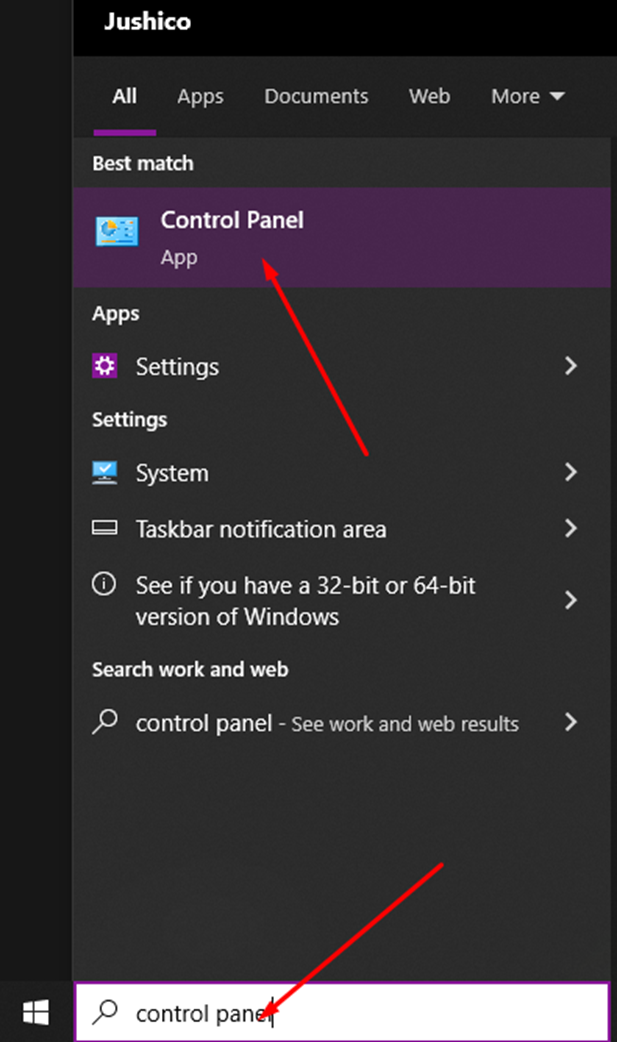
- In the bottom-left Windows search bar, type “control panel” (without the quotation marks) and click on the Control Panel app.
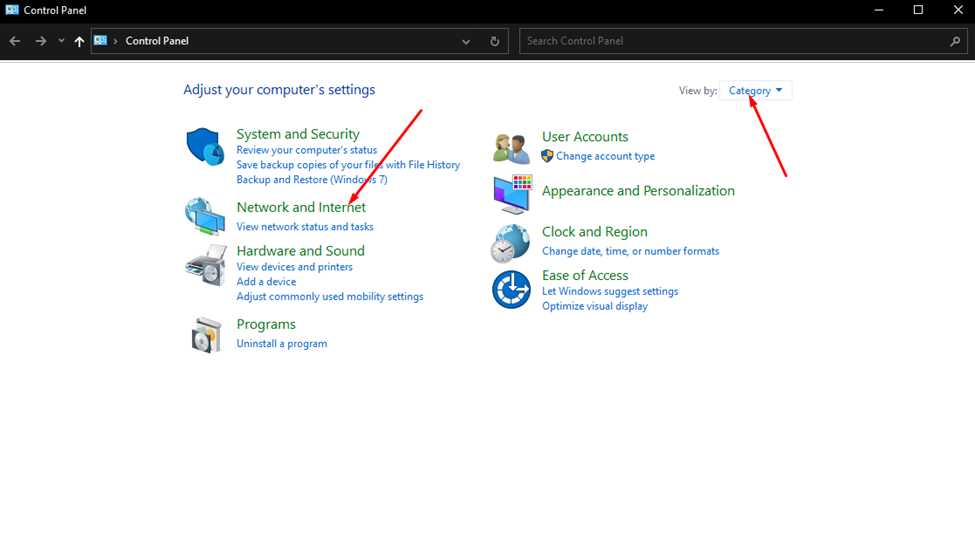
- Change the “View by” option in Control Panel to Category and then click on “Network and Internet”.
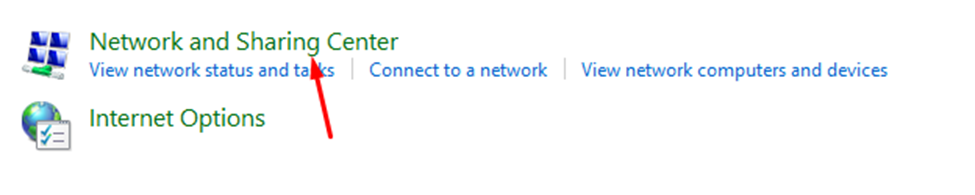
- Click on “Network and Sharing Center”.
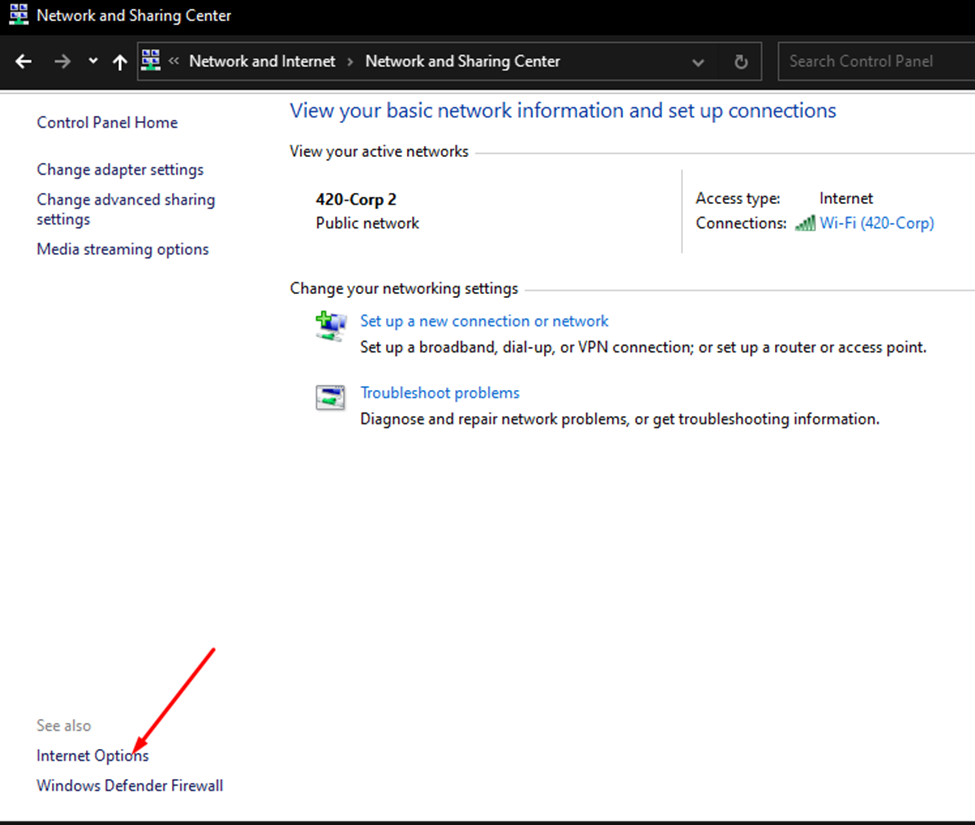
- Click on “Internet Options” at the bottom left.
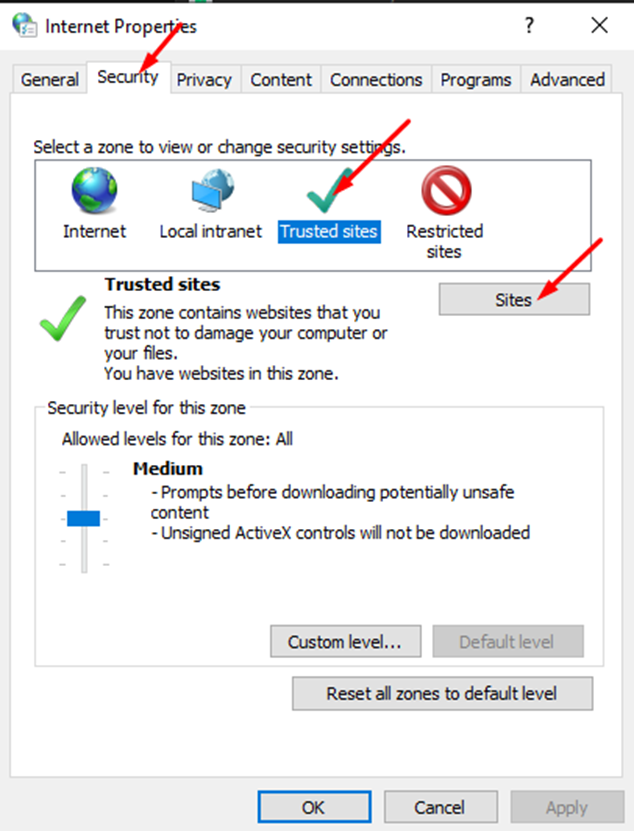
- Navigate the Security tab, click on “Trusted sites”, and then click the Sites button.
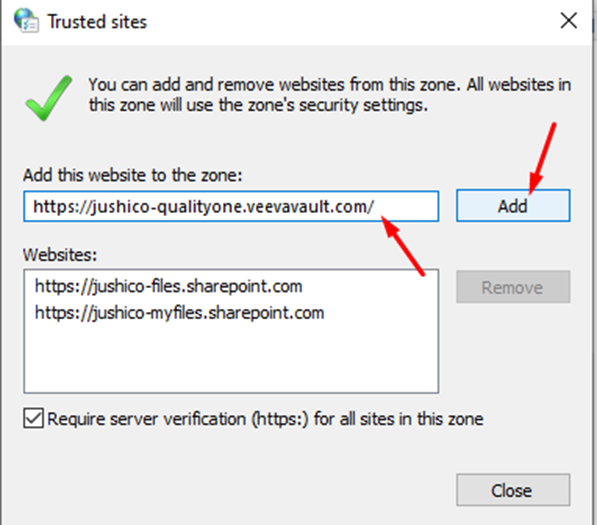
- Copy and paste this link into where it says “Add this website to the zone:” and then click the Add button:
https://jushico-qualityone.veevavault.com/
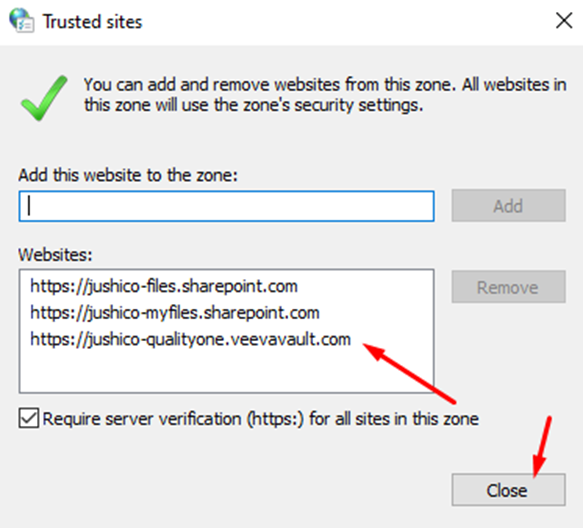
- You should see the link appear in the box below. You can then click Close.
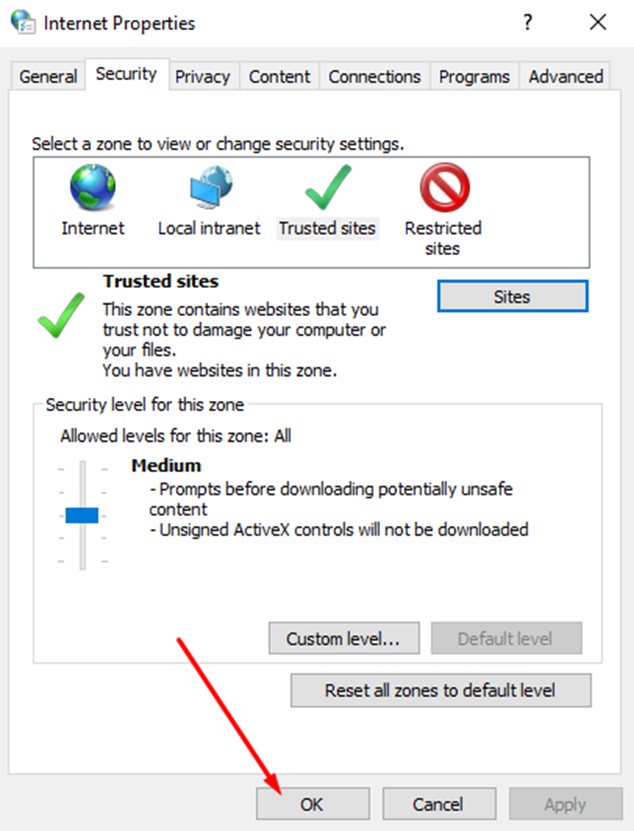
- Click OK back on the previous “Internet Properties” screen.
- You should now be able to download C15 documents that have macros and NOT run into the “Microsoft has blocked macros” error/banner, and should be able to enable macros successfully.