Recall or Replace an Email Message That You Sent
With message recall, a message that you sent is retrieved from the mailboxes of the recipients who haven’t yet opened it. You can also substitute a replacement message. For example, if you forgot to include an attachment, you can try to retract the message, and then send a replacement message that has the attachment.
To recall and replace a message
- In the folder pane on the left of the Outlook window, choose the Sent Items
- Open the message that you want to recall. You must double-click to open the message. Selecting the message so it appears in the reading pane won't allow you to recall the message.
- If you have the Classic Ribbon, from the Message tab, select Actions> Recall This Message.
- If you have the Simplified Ribbon, select the Message tab and then select More commands (...). Point to Actions and select Recall This Message.
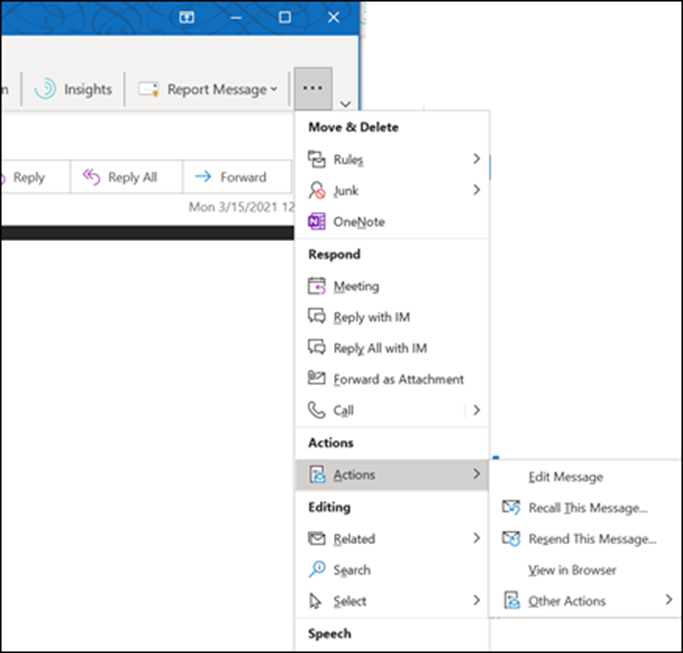
Notes:
- You cannot recall a message in Outlook on the web.
- Click Delete unread copies of this message or Delete unread copies and replace with a new message, and then click OK.
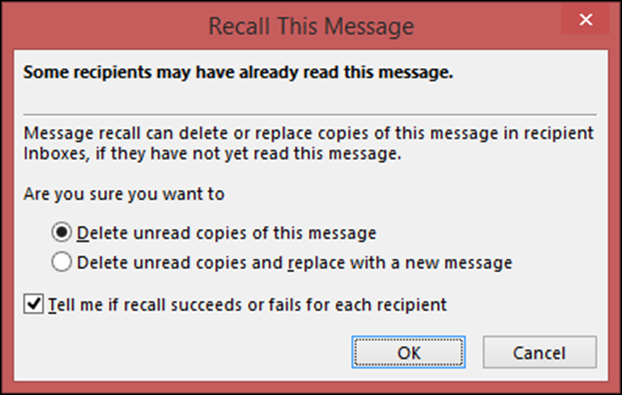
- If you’re sending a replacement message, compose the message, and then click Send.
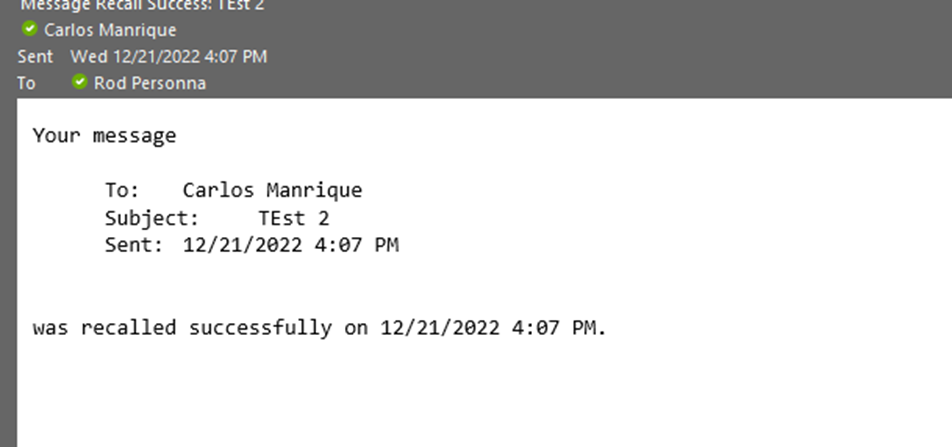
- You will then receive a message confirming the Recall: