Google Chrome | How to Back Up and Restore Bookmarks
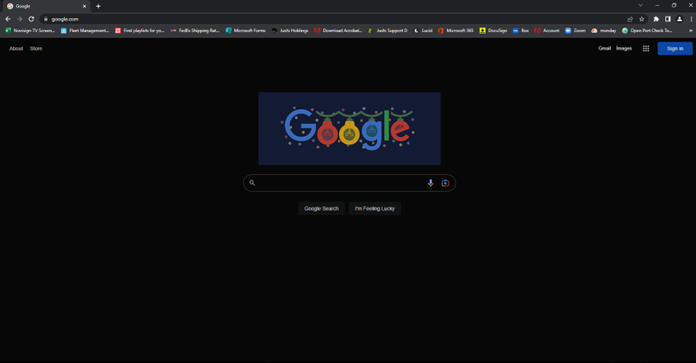
To back up your current bookmarks, you must first open Chrome.
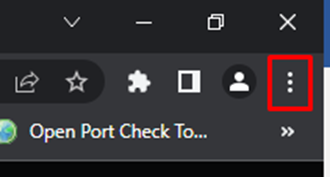
Click Customize and Control in the upper right-hand corner.
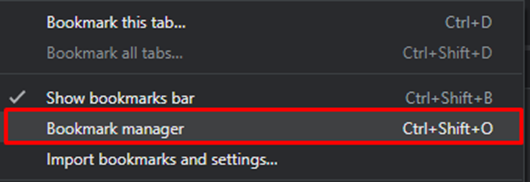
Hoover over Bookmarks and then click Bookmark Manager.
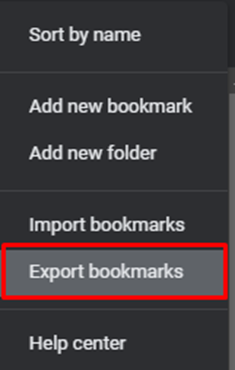
Click Organize.
From the drop-down, select Export bookmarks.
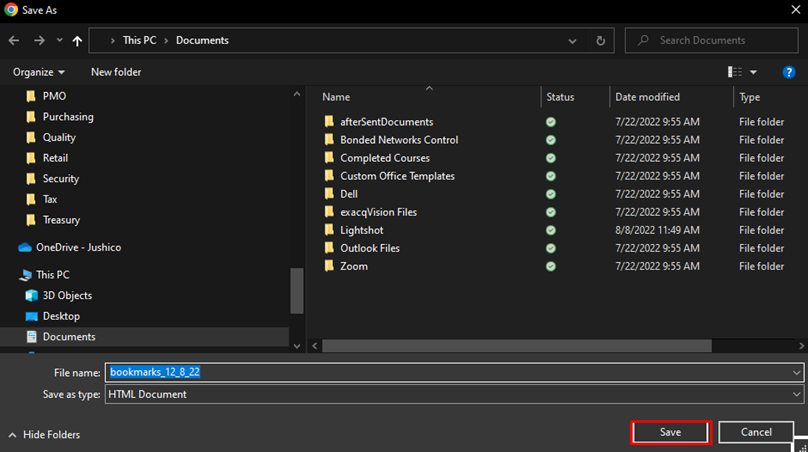
The File Explorer box will appear so that you can save your bookmarks as an HTML file. This file can later be imported into another Chrome browser or any other browser. Select Save.
To restore your bookmarks, follow steps one and two again.
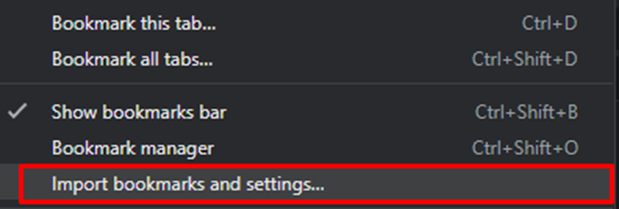
Hoover over bookmarks and select Import Bookmarks and Settings.
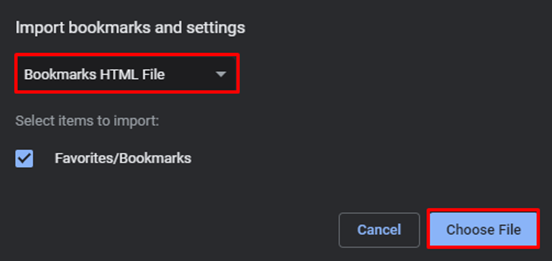
The below screen will appear. In the drop-down, select Bookmarks HTML File and then Choose File.
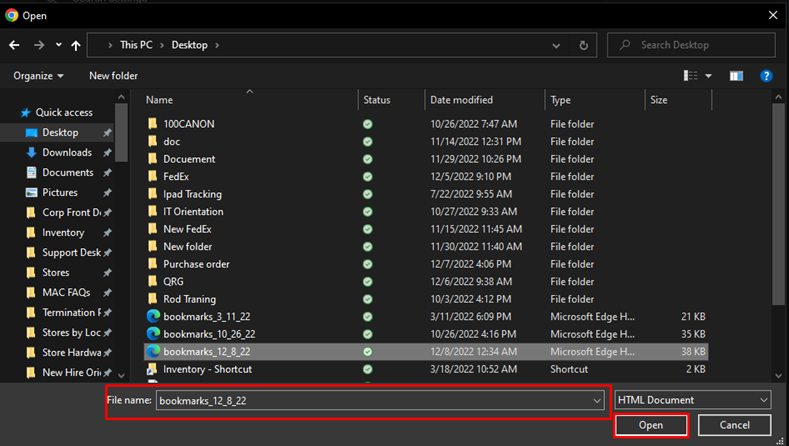
The File Explorer Box will appear, and you must select the file that was previously saved when you imported the bookmarks. Once selected, click Open.