How to Keep Your Computer Updated
This document outlines steps to be taken by users to ensure that your computer hardware is always up to date.
NOTE: These steps are for users using a Dell computer/laptop.
- Click on the Windows button in the bottom left corner of your computer screen.

- Type in the word Dell to see "Dell Command | Update" appear.
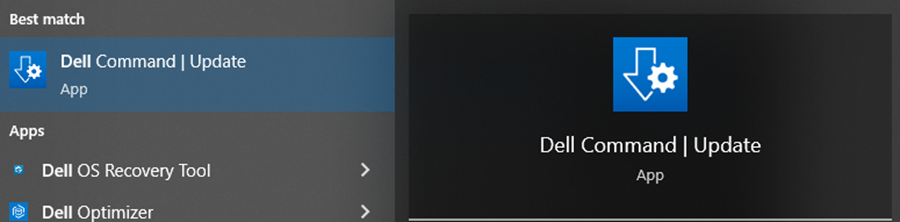
- Click on the Dell Command | Update App and the below screen will appear.
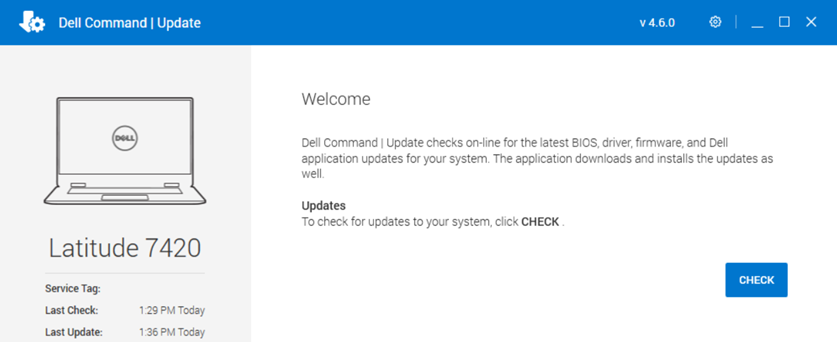
- Click Check to see if your computer has any updates

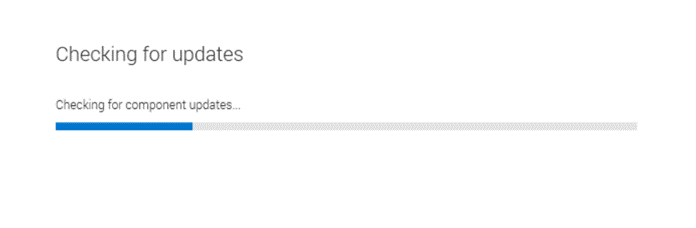
- Once you click check, the computer will check for updates.
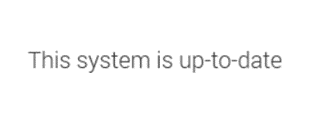
- If you do not have any updates, the system will prompt the below message.
- If you do have updates to run, the system will prompt the following message.
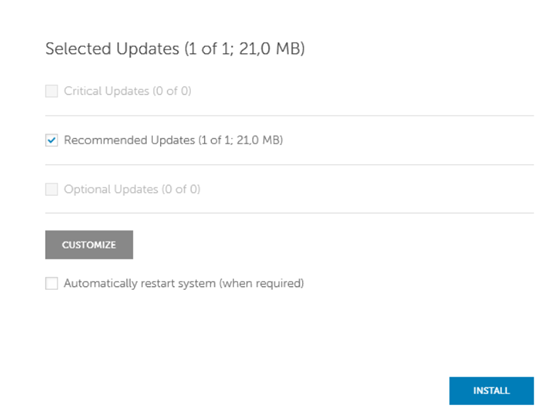
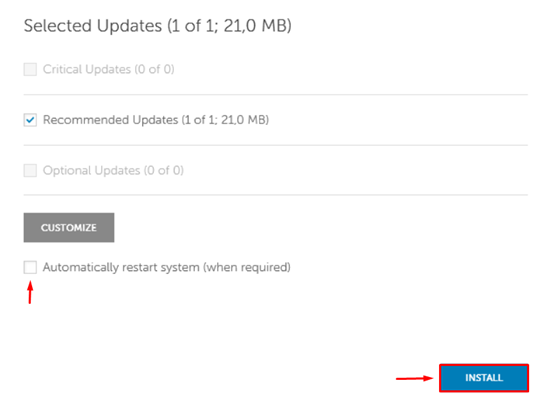
- Select all of the updates that need to be completed and check the box that states “Automatically restart the system (when required).” Click Install.
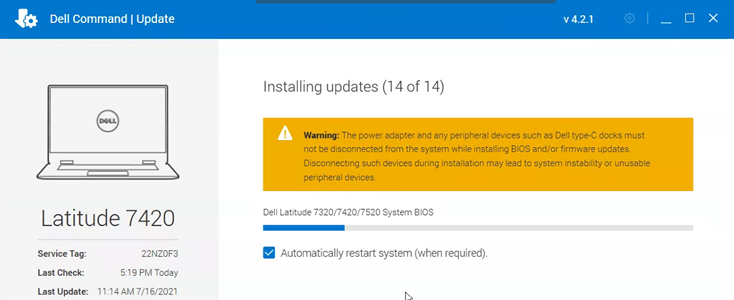
- When installing the updates, you will see the below screen appear. This screen provides you with an update on the progress of the updates.
- When completed, you will receive an “Installation Complete” notification. Click close and if needed, your computer will automatically restart.